
You may have heard that your business needs an AI agent. Often, what would help is something simpler, cheaper and easier to keep an eye on.
The three names get used as if they mean the same thing. They differ on one question: who decides what happens next?
- AI assistant: you do. You ask, it helps, you decide what to do with the answer.
- Automated workflow: the steps do. You lay them out once, and they run in that order each time.
- Autonomous agent: the AI does, inside limits you set. You give it a goal, and it works out the steps.
This guide uses one example throughout: you write a blog post each week and want it turned into social media posts.
The three side by side
| AI assistant | Automated workflow | Autonomous agent | |
|---|---|---|---|
| Think of it as | A helper you talk to | A production line | A team member with a brief |
| Who decides the next step | You | The steps you laid out | The AI, within your limits |
| What starts it | You asking | A time or an event | A goal from you, sometimes on a schedule |
| Same steps each time | Only if you ask the same way | Yes | Not always |
| Where AI fits | It is the whole tool | One step among several, or none at all | It runs the whole job |
| Effort to set up | Low | Medium | Higher, mostly in setting limits and checking |
| What to keep an eye on | Wrong facts, said confidently | A step that stops without telling you | Actions you didn't expect |
| Where you stay involved | Every answer | An approval step you choose | Anything public or hard to undo |
| Best for | Writing, thinking, one-off jobs | The same job, week after week | Jobs where the steps truly change each time |
1. AI assistant: you stay in charge
You open the AI, give it your blog post, and read what comes back. Nothing happens until you ask, and nothing goes out until you send it.
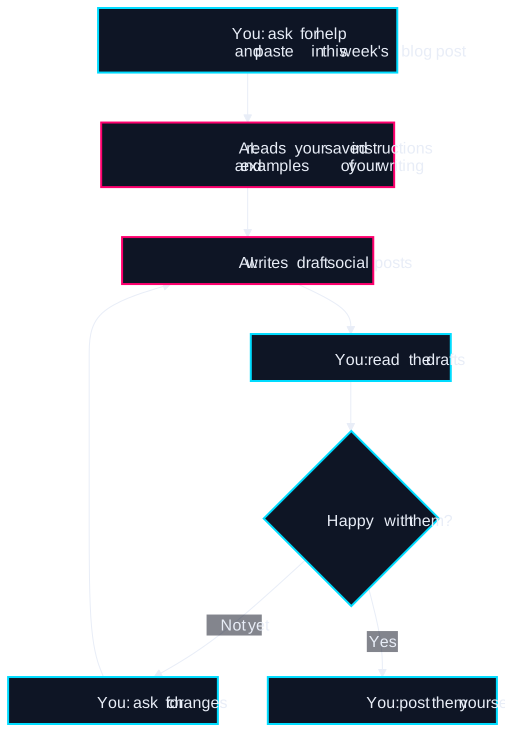
How to set it up. Save your instructions once so you never retype them:
- Create a Project in Claude or ChatGPT. Both offer Projects on their free plans, with limits.
- Add instructions, such as: "Turn each blog post into three LinkedIn posts in my voice. Don't add facts that aren't in the post."
- Add three or four examples of posts you wrote yourself.
- Paste in this week's blog post and read what comes back.
That alone may be all you need, and it takes about half an hour.
2. Automated workflow: the steps run themselves
A workflow starts on its own and follows the same route each time. AI might write the drafts, while ordinary tools do everything around it.
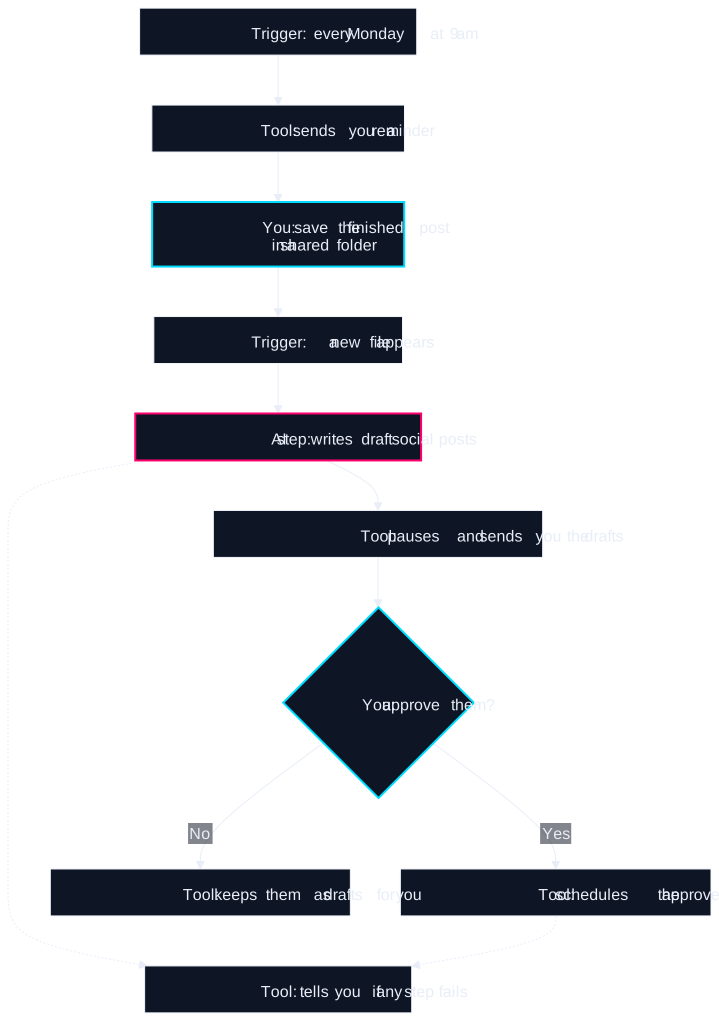
How to set it up. Tools like Zapier, Make and n8n let you build this visually, with no code:
- Choose the trigger, the thing that starts it: a time, or an event such as a new file.
- Add the steps in order, and give the AI step the same instructions you saved earlier.
- Add an approval step before anything public.
- Set it to tell you when a step fails. This guide on automations that stop quietly shows what to look for.
One useful surprise: not every step needs AI. A weekly reminder can be a repeating calendar event, which is free and very dependable.
3. Autonomous agent: the AI chooses the steps
You give an agent a goal and a set of tools. It decides what to do, looks at the result, and decides again, round and round until the job is done. Anthropic, the company behind Claude, draws the line the same way in its guide to building agents: workflows follow set paths, and agents direct their own.
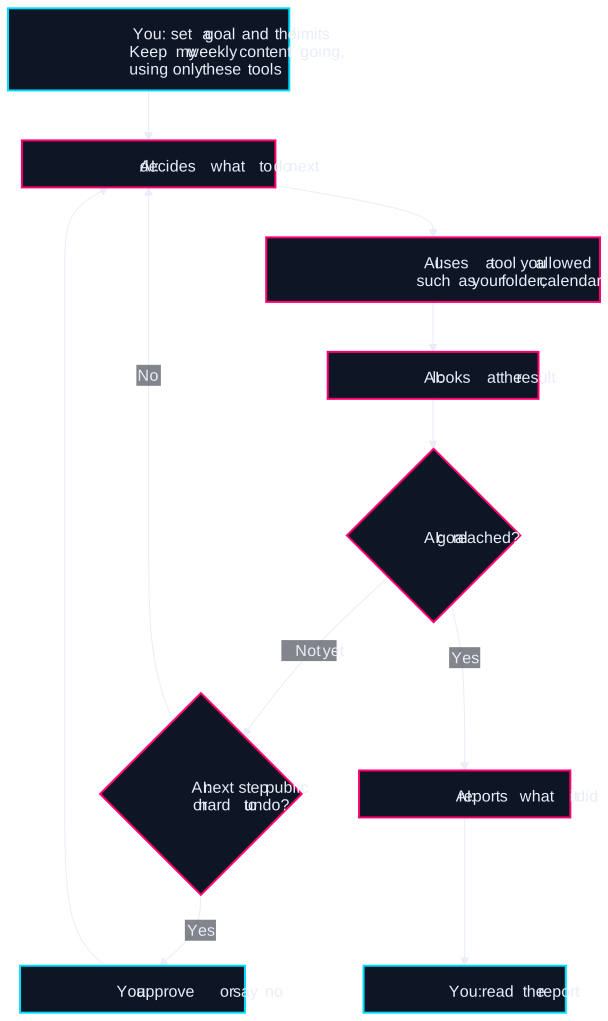
How to set it up. Most of the work is in the limits:
- Write the goal in one or two sentences, including what "finished" looks like.
- Connect only the tools the job needs, with the least access that works.
- Require your approval before anything public, paid for or hard to undo.
- Try it on a small job, and read everything it did before giving it a bigger one.
Which tools do what
| Assistant | Workflow | Agent | |
|---|---|---|---|
| Claude | Projects (free accounts get up to five), plus connectors to reach your apps | Scheduled tasks on paid plans. You describe the task, and it runs even with your computer asleep, unless it needs your local files | Cowork, now merging into the main Claude app. It asks before acting by default |
| ChatGPT | Projects, including on the free plan, plus connected apps | Scheduled tasks. Free plans can run them once a day at most. Plus and above can also respond to Gmail, Slack or GitHub events | ChatGPT Work on paid plans other than Go, with approval of important actions. Business plans also have workspace agents |
| Zapier | Not its main job | Zaps with AI steps. Human in the Loop adds approvals on Professional plans and above | AI by Zapier, where you can require approval tool by tool. That setting starts off |
| Make | Not its main job | Scenarios with AI modules | Make AI Agents |
| n8n | Not its main job | Visual workflows, with send and wait for approval steps. Free if you host it yourself, or a paid cloud plan | AI Agent step, with a human review step before a tool runs |
| Written in code | Claude or OpenAI API | Claude or OpenAI API, plus your own scheduler | Claude Agent SDK or OpenAI Agents SDK |
Two changes are worth knowing about if you use ChatGPT. OpenAI plans to retire custom GPTs and move them to plugins, and its Agent Builder closes on November 30, 2026. I wouldn't start anything new on either.
One more detail: a ChatGPT scheduled task created inside a Project can't read the files you uploaded to that Project, so paste what it needs into the task itself.
I checked these on the official pages on November 4, 2026. They change often, and plans vary, so look at your own account before you rely on one.
Where the lines blur
These are useful labels, not strict boxes.
- Connecting an app doesn't make an agent. Connect Canva or your calendar to Claude or ChatGPT, and you have an assistant that can reach more. It still waits for you to ask.
- Connecting an app doesn't create a schedule. Something still has to start the work, such as a scheduled task or a workflow tool.
- A workflow can contain an agent. One step in a fixed route can hand a small job to an agent, then the route carries on.
Which one do you need? A five-minute check
You don't need to change anything or open any tool. Take a piece of paper and:
- Write the job in one sentence.
- List its steps as you do them today.
- Circle any step that needs real thought. Those are the ones AI might help with.
- Note where a mistake would land: with you, or in front of a customer.
Then follow this chart:
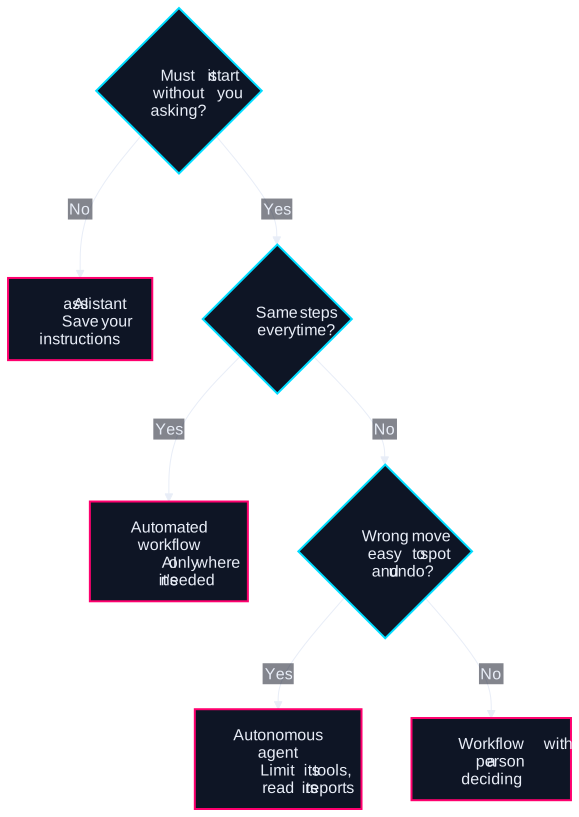
Most small business jobs land on the first two answers, and that's good news. Start with the simplest one that does the job. You can always add the next piece once you know you need it, and our blog post example never needs more than a workflow.
Whichever you choose
- Read before it goes out. AI can state wrong facts confidently. This guide on checking AI answers has a fifteen-minute routine.
- Think about customer details. Anything the AI reads goes to the AI company. Under UK GDPR, customers should be told who handles their details.
- Know what it costs. Background tasks and AI steps can use your plan's allowance even on quiet days. This guide on monthly allowances shows where to look.
- Know how you'd find out if it stopped. Pick the place you'd see it, and look there once a week.
What to do next
If you're in Sheffield and would like to try this around a table, I run free plain-English AI sessions at Electric Works.
If you already have automations or AI steps running and want a second pair of eyes, I can read through them for you, read-only. Here's an example of the findings note you'd get.